Real cases · each one is a Nocarta App

Run it yourself.

Each case below is packaged as a Nocarta App: the templates, Automations and capabilities it uses. Register, install the App on your own account, and run it on your own paper, your own data, your own voice or video, on your own computer.

  1. 1Register
  2. 2Install the App from the App Store
  3. 3Run it with your own files
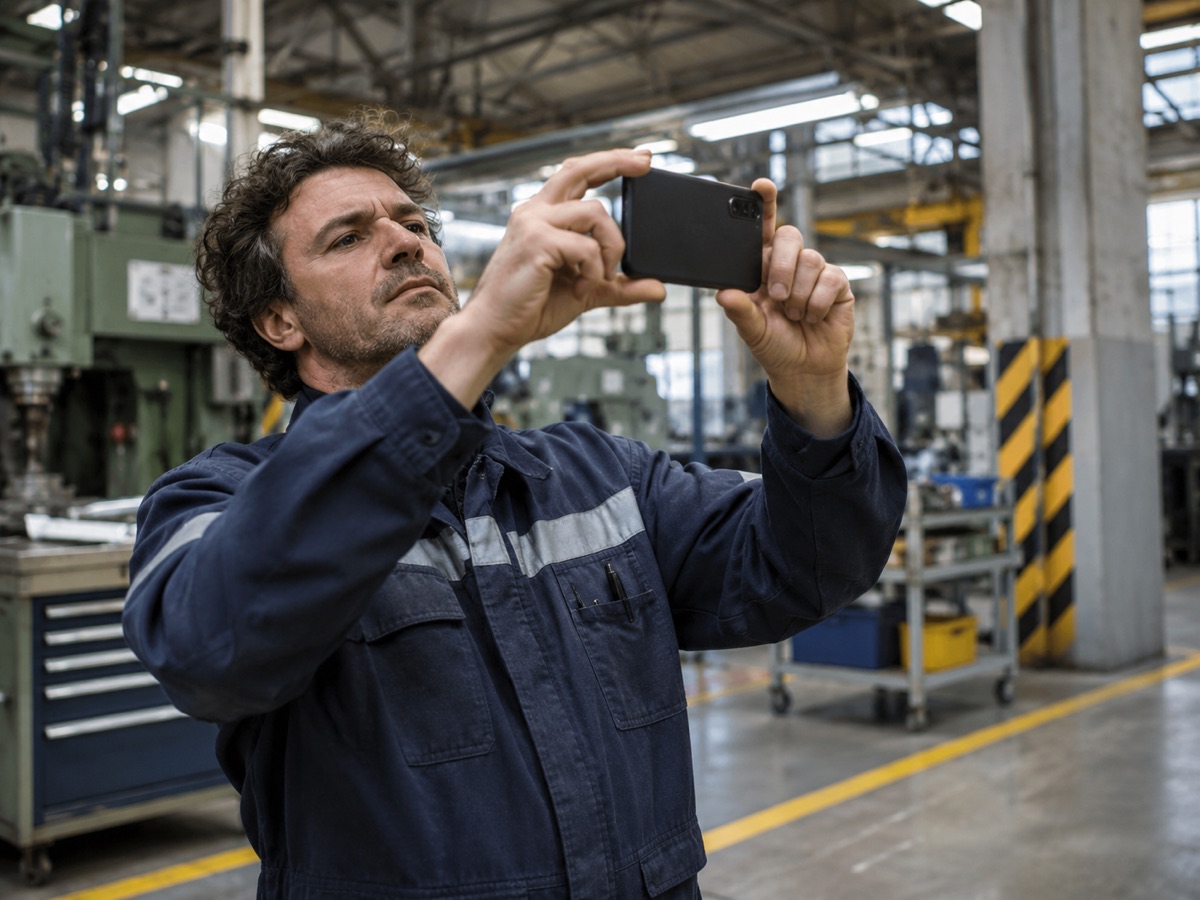
A technician in a factory holds up a phone to take a photo
  1. PhotoThe blank sheet, from a phone or a PDF
  2. Text extractionLabels read, boxes found, a field placed on each
  3. Template14 fields, ready to fill
Digital template

Turn a paper maintenance visit sheet into a digital template

For a company whose technicians fill a printed Maintenance Visit Report on site: equipment tag, service type, hours, parts replaced, the client's acceptance.

  1. Photograph or upload the blank sheet (PNG or PDF).
  2. Nocarta reads the page and places a field on every box: os_number, visit_date, equipment_tag, service_type…
  3. Check the fields, rename one or change its type if you want.
  4. Open a new instance on the phone and fill it in place of the paper.
  • browser or phone
  • one blank sheet
  • no desktop app
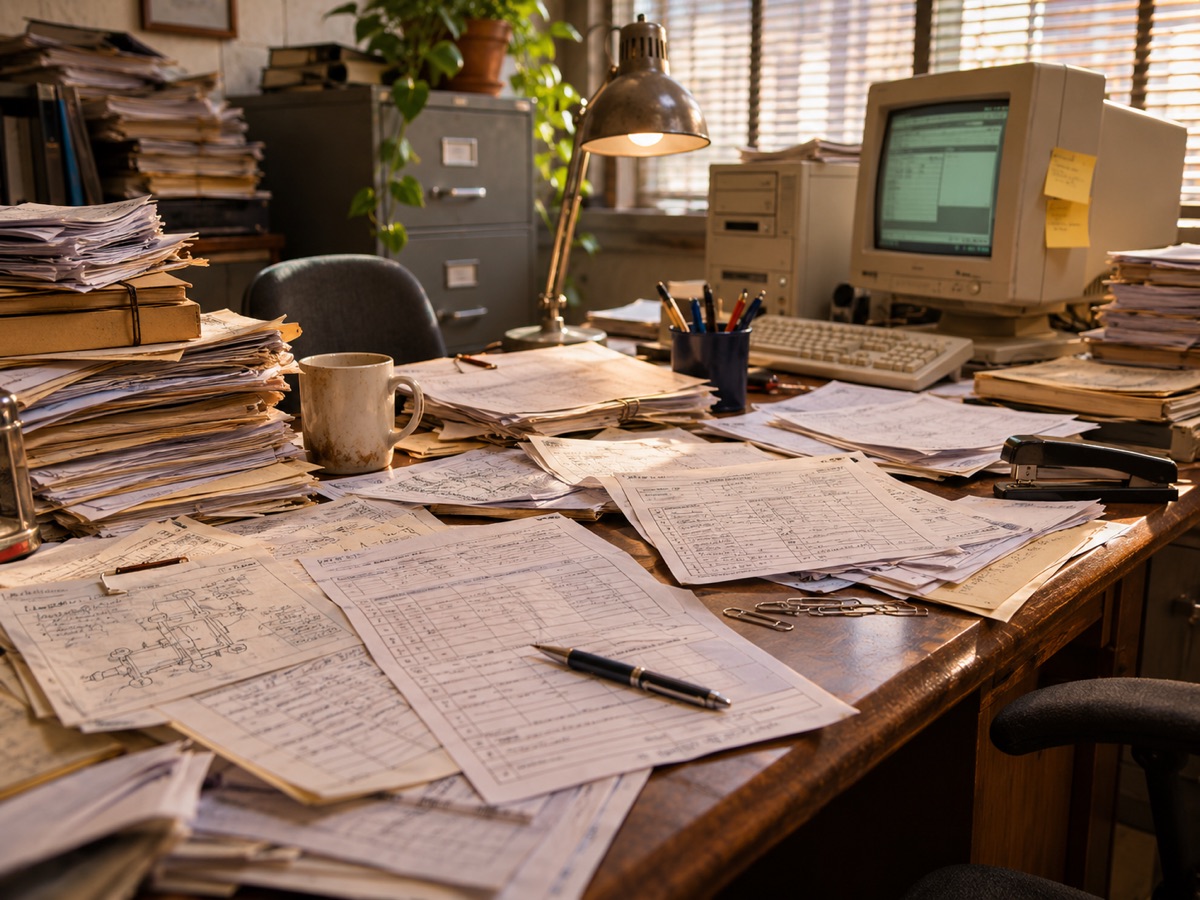
An office desk covered in paper forms beside an old computer
  1. InstancesOne per filled sheet, values read from the handwriting
  2. Automation written for youYou say where the data goes; the assistant writes the steps
  3. Visits registeredOne visit per sheet, repeats refused
Automation written for you

Your old system has no import? Ask Nocarta to build the upload for you.

Many offices still type paper into a scheduling tool, an ERP or a government portal that offers no way to import data. Tell Nocarta which system the data goes into. It writes the Automation that does the typing, then runs it for every sheet. This example builds it for MaintSched, a web scheduling tool.

  1. Photograph the filled sheets. Each one becomes an instance, with its values read from the handwriting. Fix any value the text extraction got wrong.
  2. Ask the assistant in plain words: “Register each visit in MaintSched, one new visit per sheet.”
  3. The assistant writes the Automation from your template's fields and the system's screens. Read it, and try it on one instance.
  4. Run all the instances as a Batch. The desktop app signs in with your saved credential and registers one visit per sheet. A repeated os_number shows as an error on that instance, never as a second visit.
  5. Next month, run the same Automation on the new sheets. Nothing is written again.
  • Nocarta desktop app
  • MaintSched example App
  • sample sheets included
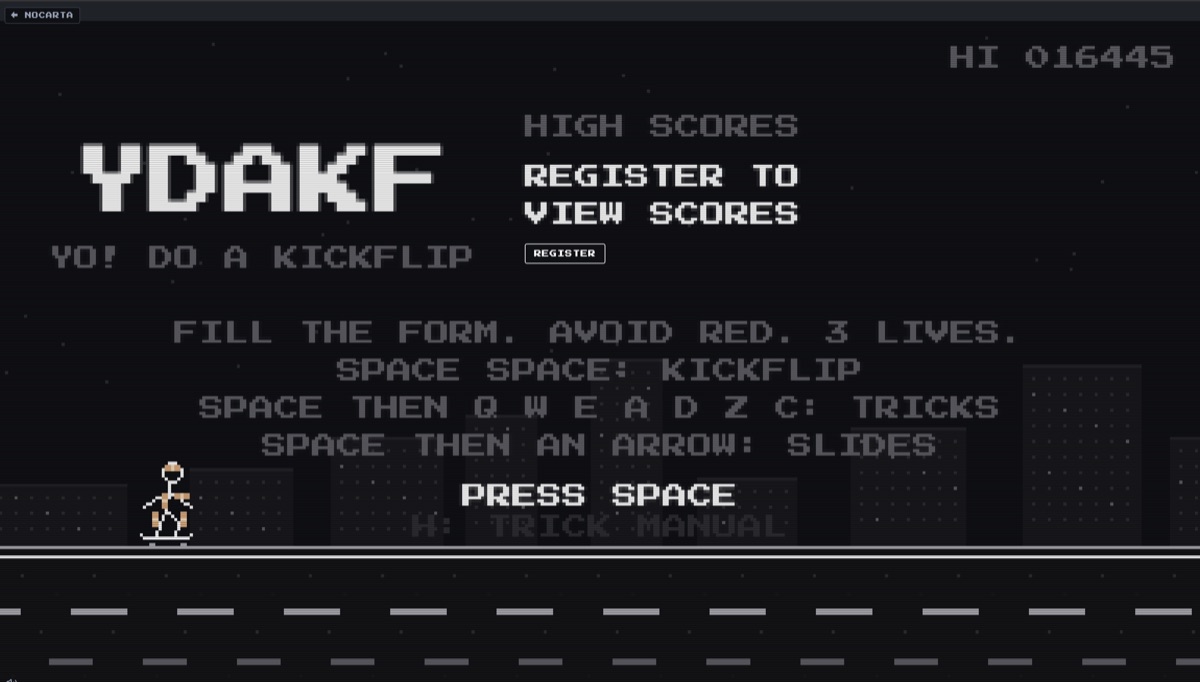
The YDAKF start screen: a pixel skater on a road, with the game's controls
  1. Screen streamImages of the game window, many a second
  2. Colors and shapesObstacles, rails and letters found in the pixels
  3. SoundA tone for each thing, a click to jump
Screen to sound

YDAKF by ear: a skate game a blind player can ride

An Automation that watches the game screen and turns what it sees into sound. The game knows nothing about it: the script reads only the pixels, the way it would on any other program.

  1. Click Run. The desktop app opens the game and starts watching its screen.
  2. Press Space to start a ride.
  3. Each thing ahead beats faster as it comes closer. Boxes, walls, rails and red hazards each have their own tone; higher things sound higher.
  4. A click says “jump now”. A double click on a rail says “jump, then pick a slide”.
  • Nocarta desktop app
  • sound on
  • headphones help
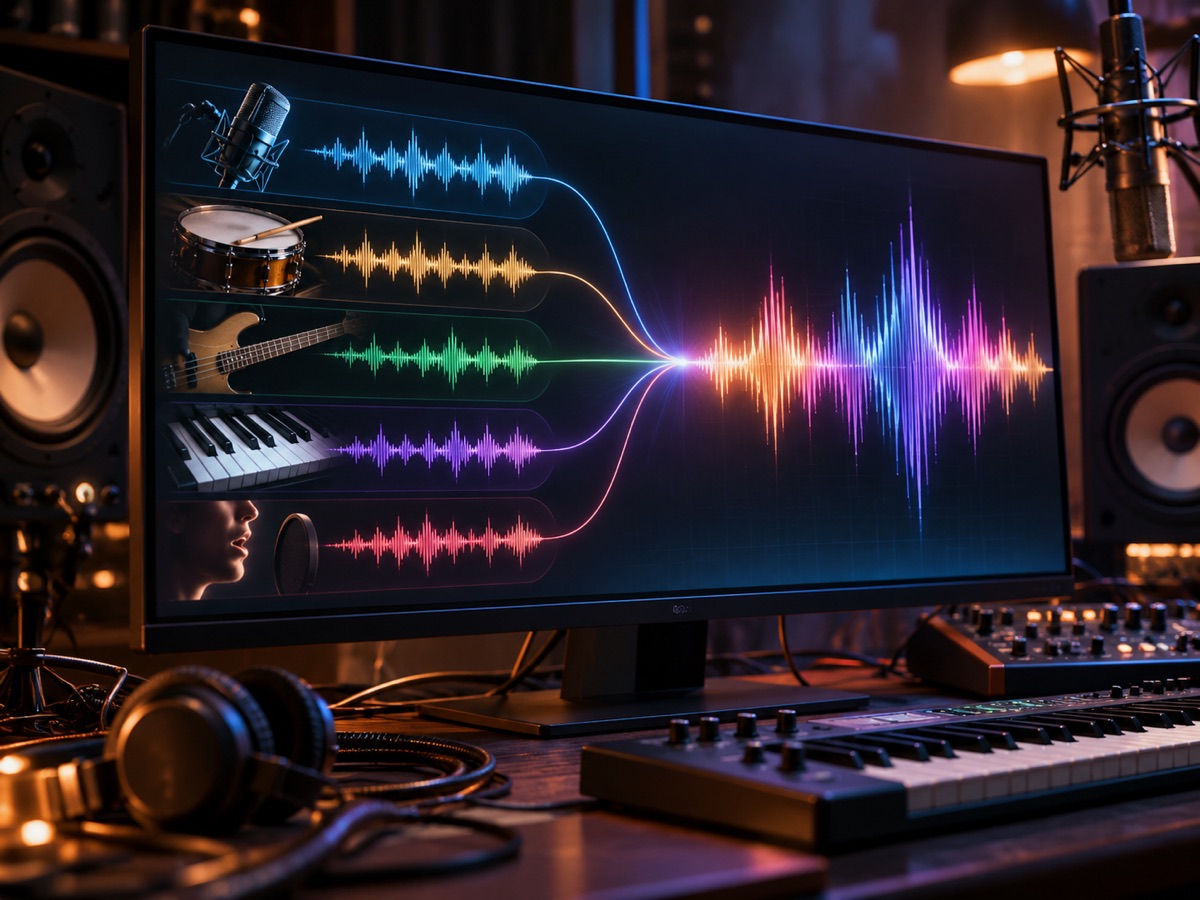
A music studio screen joining several recorded tracks into one
  1. Your recordingsTakes from the computer's microphone
  2. ACE-Step, localThe music model runs on your machine
  3. Your songSaved in Nocarta, ready to play
Music on your machine

Build a song from several recordings with ACE-Step

ACE-Step 1.5 makes music on your own computer (Mac, Windows or Linux). Nocarta installs it, records you, and keeps every song you make.

  1. The App installs ACE-Step on your computer. The first song downloads about 10 GB of model files.
  2. Record a few takes on your microphone: a hum, a beat on the table, a line of lyrics.
  3. The Automation picks the beats from each recording and stacks them into one track with ACE-Step.
  4. Or write a style and lyrics on the Nocarta page, choose a length, and get a song back. Every result is saved in Nocarta.
  • Nocarta desktop app
  • microphone
  • ~10 GB free disk
  • Apple Silicon or a GPU
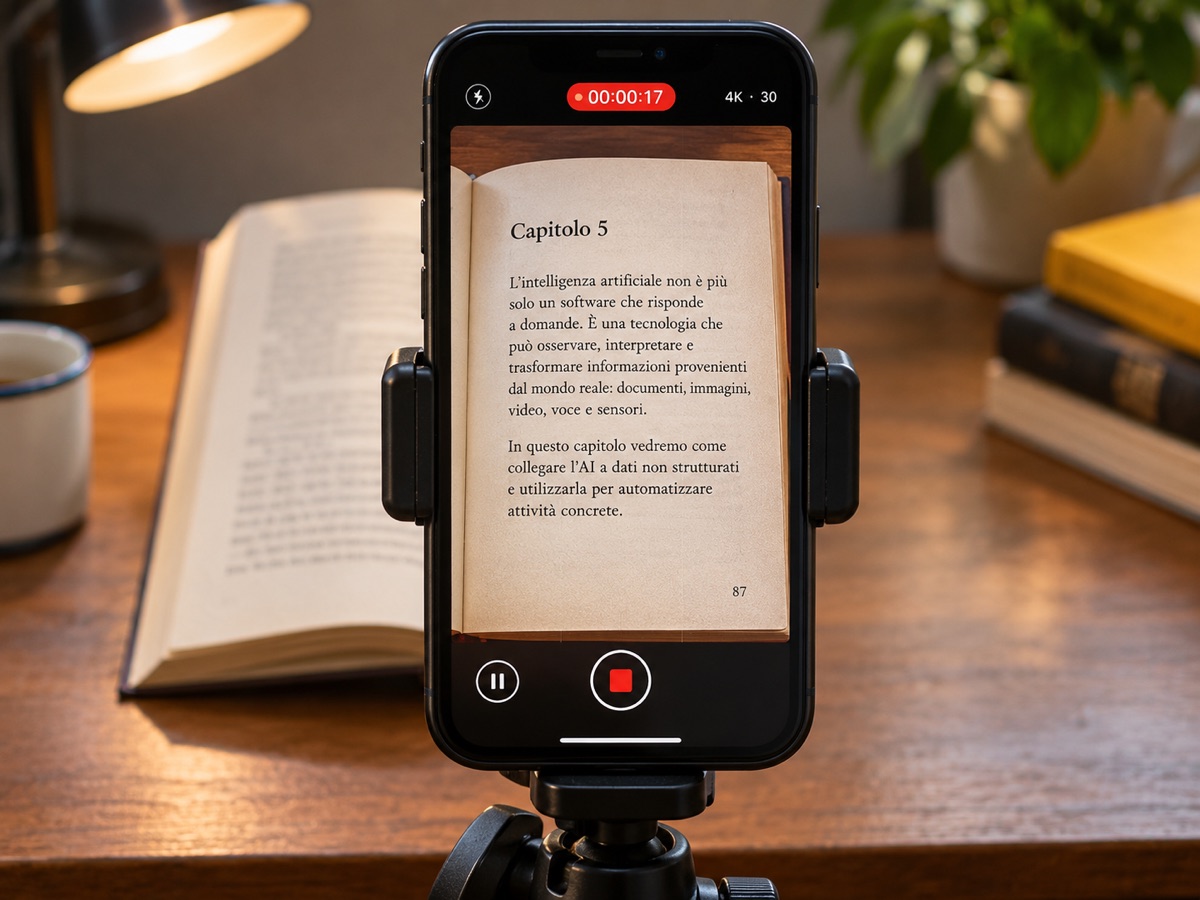
A phone on a tripod records a book page, Chapter 5, with the open book on the desk behind it
  1. One videoThe pages turned on camera
  2. Spoken words foundEach “page” marks a moment; the sharpest frame is kept
  3. The book, as textPages in order, text extracted
Book scanning

Scan a whole book by filming it. Say “page” at every page.

No scanner and no photo per page. Film yourself turning the pages and say one word each time a page lies flat. Your voice tells Nocarta which moment of the video is a page.

  1. Record a video of the book with your phone, turning the pages one by one.
  2. When a page lies still and readable, say “page”. Say “finish” at the end.
  3. Nocarta finds every “page” you said and takes the sharpest still frame around it.
  4. The frames become the pages of one instance, in order, and the text of every page is extracted.
  • page
  • page
  • page
  • finish
  • phone camera
  • browser or phone
  • no desktop app
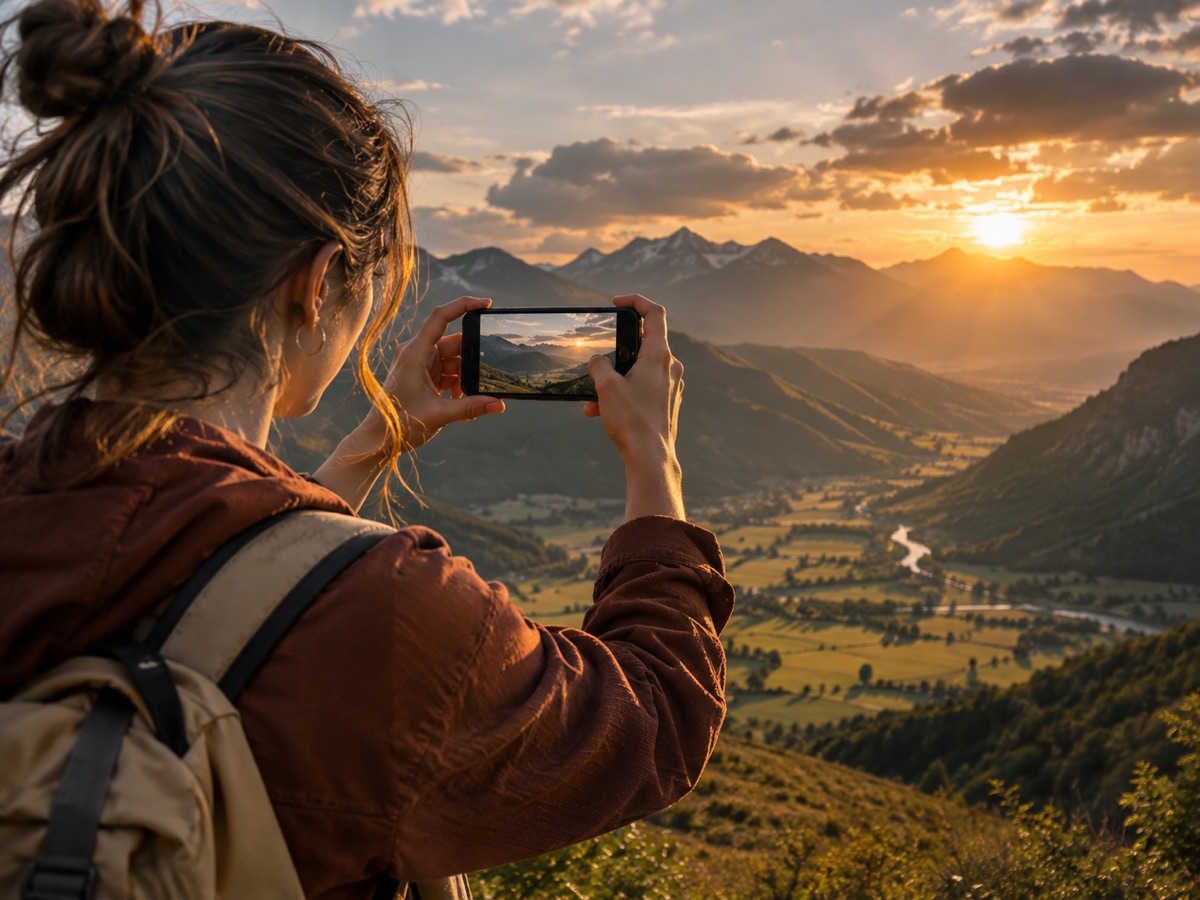
A person films a mountain valley at sunset with a phone
  1. Spoken commands“action”, “cut intro”, “and print”
  2. Cut on the commandsThe commands found in the transcript, the video cut there
  3. Named clipsEach with its frame and transcript
Video editing by voice

Direct your video out loud. It comes back cut.

Say the editing commands while you film, the way a director does on set. Nocarta reads them from the sound and cuts the video for you: every take named, the good ones marked, the commands left out.

  1. Say “start recording”, then “action” before each take.
  2. End a take with “cut” and its name: “cut intro”, “cut pack-shot”. Add “and print” to mark a take you want to keep.
  3. Say “comment” to leave a note on the last take, and “wrap” when you are done.
  4. Upload the video. Each take becomes its own clip, with a still frame and its own transcript, in any language you speak.
  • start recording
  • action
  • cut intro
  • action
  • cut pack-shot and print
  • wrap
  • any camera or phone
  • browser or phone
  • commands in English
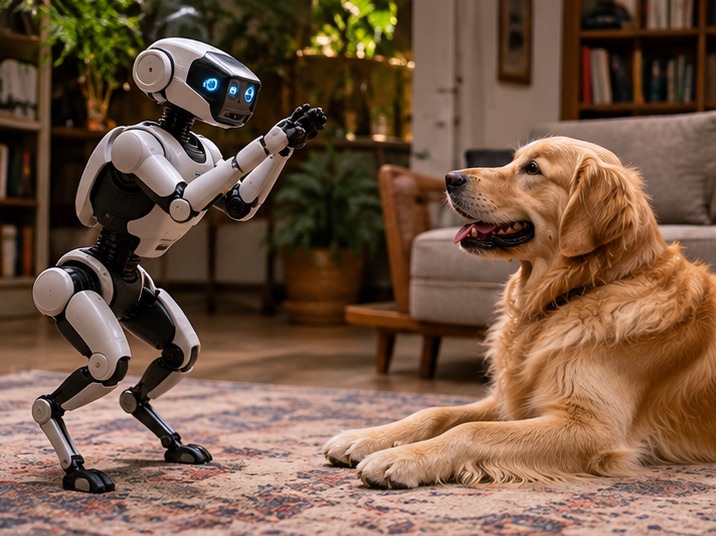
A robot dog raises its hands toward a golden retriever
  1. Camera streamThe robot's camera, or a camera on the computer next to it
  2. Is it your dog?Each picture compared with photos of your dog, not just any dog
  3. Hi!The robot is sent its greeting command
Robots

Make your robot dog say hi when it sees your real dog

An Automation watches the robot's camera and waits for one particular dog: yours. When it is in the picture, the robot waves hello and the computer says hi. Another dog gets nothing.

  1. Save three photos of your dog in Recordings and Media, named Rex 1, Rex 2 and Rex 3.
  2. In the Automation's first lines, set your dog's name, the robot's address and its greeting: hello, bark or dance.
  3. Run it in the desktop app. Twice a second it compares the robot's camera with your dog's photos.
  4. When a picture is alike enough, the robot greets your dog, then waits a minute. The run log keeps the time and the likeness of every greeting.
  • Nocarta desktop app
  • a robot that takes commands over the network (written for Hengbot Sirius)
  • photos of your dog
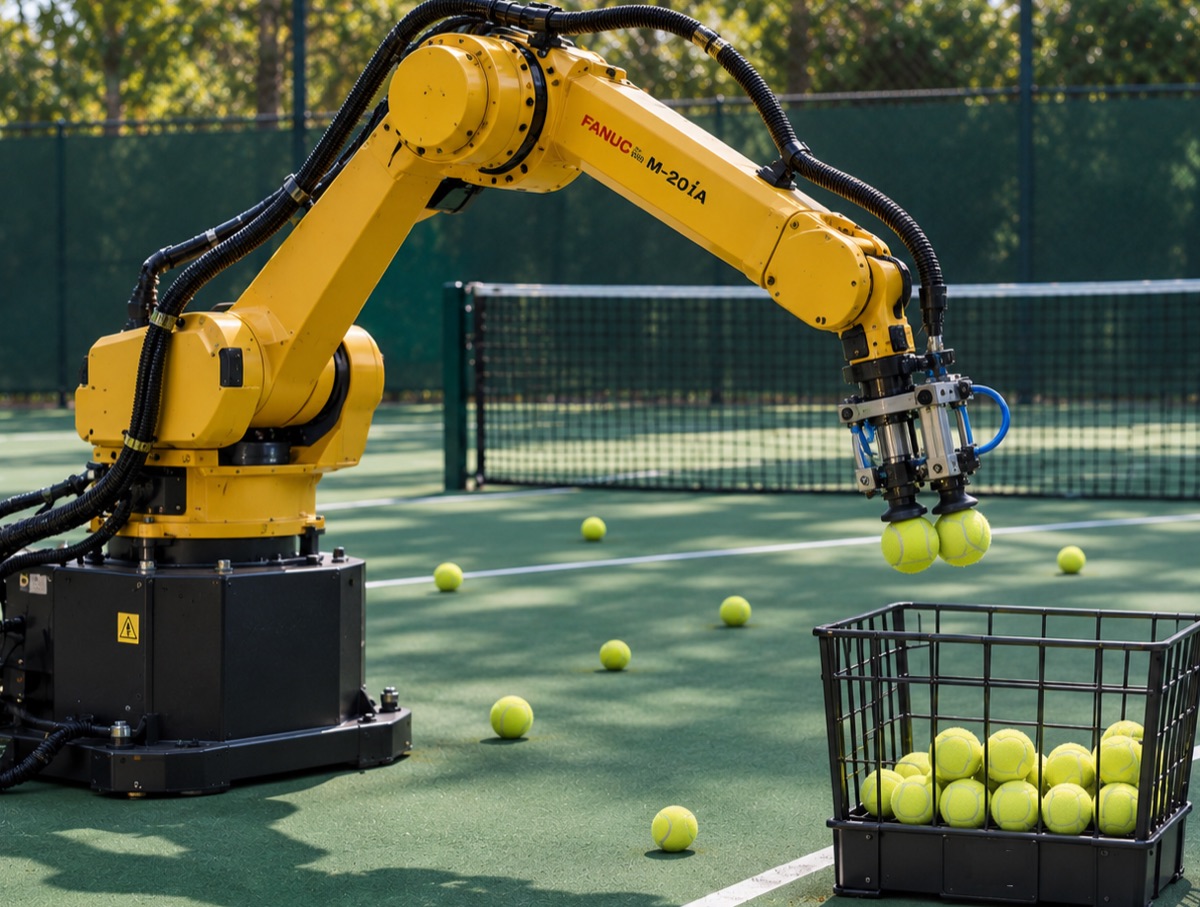
A robot arm picks tennis balls up from a court and drops them into a basket
  1. A photoTaken with the phone, sent to the Stock count form
  2. Count capabilityYou say what to count, in your own words
  3. A numberWritten into the instance
Counting

Count what you name on a photo, and keep the number with it

Boxes on a pallet, bottles on a shelf, screws in a tray. Take the photo with your phone, say in words what to count, and Nocarta writes the number next to the photo.

  1. Open the Stock count form, choose With Image and send the photo. It becomes a Stock count instance.
  2. Run the Recipe Count my photo on it, and type what to count: “boxes”, “green bottles”.
  3. The Count capability answers with a whole number, written into the instance's Count field.
  4. Photograph the next shelf. Every count stays with its photo, for anyone to check.
  • browser or phone
  • no desktop app
A plate of lasagna on a checked tablecloth
  1. Photo of the plateBefore you eat
  2. Your own Capability“What food is this, how much, how many calories?”
  3. Food diaryOne instance per meal, the day added up
Food and health

Count the calories on your plate from one photo

Take a picture before you eat. Nocarta names each food, guesses the portion and estimates its calories. Every meal goes into a food diary you own.

  1. Photograph the plate from above. Open the Meal form, choose With Image and send the photo.
  2. Run Read my meal on it. Foods lists each food with its portion and calories; Calories holds the plate's total.
  3. Fix a portion if the guess is off. The two questions are your own Capabilities, so you can read and change them.
  4. In the evening, run Add up my day: today's meals add up into a Food day.
  • phone camera
  • no desktop app
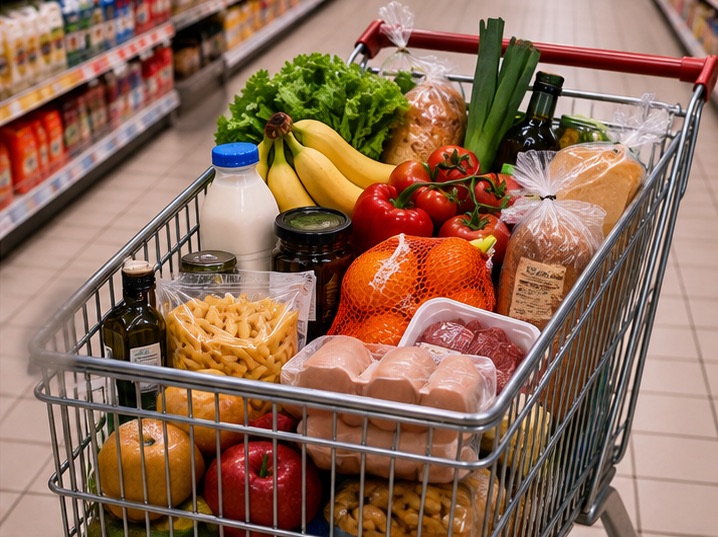
A supermarket cart full of groceries
  1. Tag photos, or one video“add three”, “remove”, “finish” as you film
  2. Each tag readProduct and price from the picture, how many from your words
  3. The totalPrice times quantity, added up into a Cart
Shopping

Know your cart's total before you reach the checkout

Photograph each price tag, or film them all in one video and speak as you go. Nocarta reads product and price, takes how many from what you said, and adds it all up.

  1. Photos: open the Cart item form, choose With Image and send one photo per tag, several at once if you like.
  2. Video: hold the camera on each tag and say “add”, or “add three”. Say “remove” to drop the item you just added, and “finish” at the end.
  3. Run Total my cart for the photos, or Cart from a video on the video. Each tag becomes a Cart item: product, price, quantity.
  4. The total of price times quantity goes into a new Cart. Compare it with your receipt.
  • add
  • add three
  • remove
  • add
  • finish
  • phone camera
  • no desktop app
Your account, your files

Every case here runs on a free account.

Registering takes an email address. Install any App above, run it with your own material, and keep what it makes.